
 ImageImage editor
01Website heroes
Give your first screen presence.
Frame your app inside an iPhone, leave room for the headline, and export a still image that belongs on your landing page.
Create a hero image
iPhone mockup generator
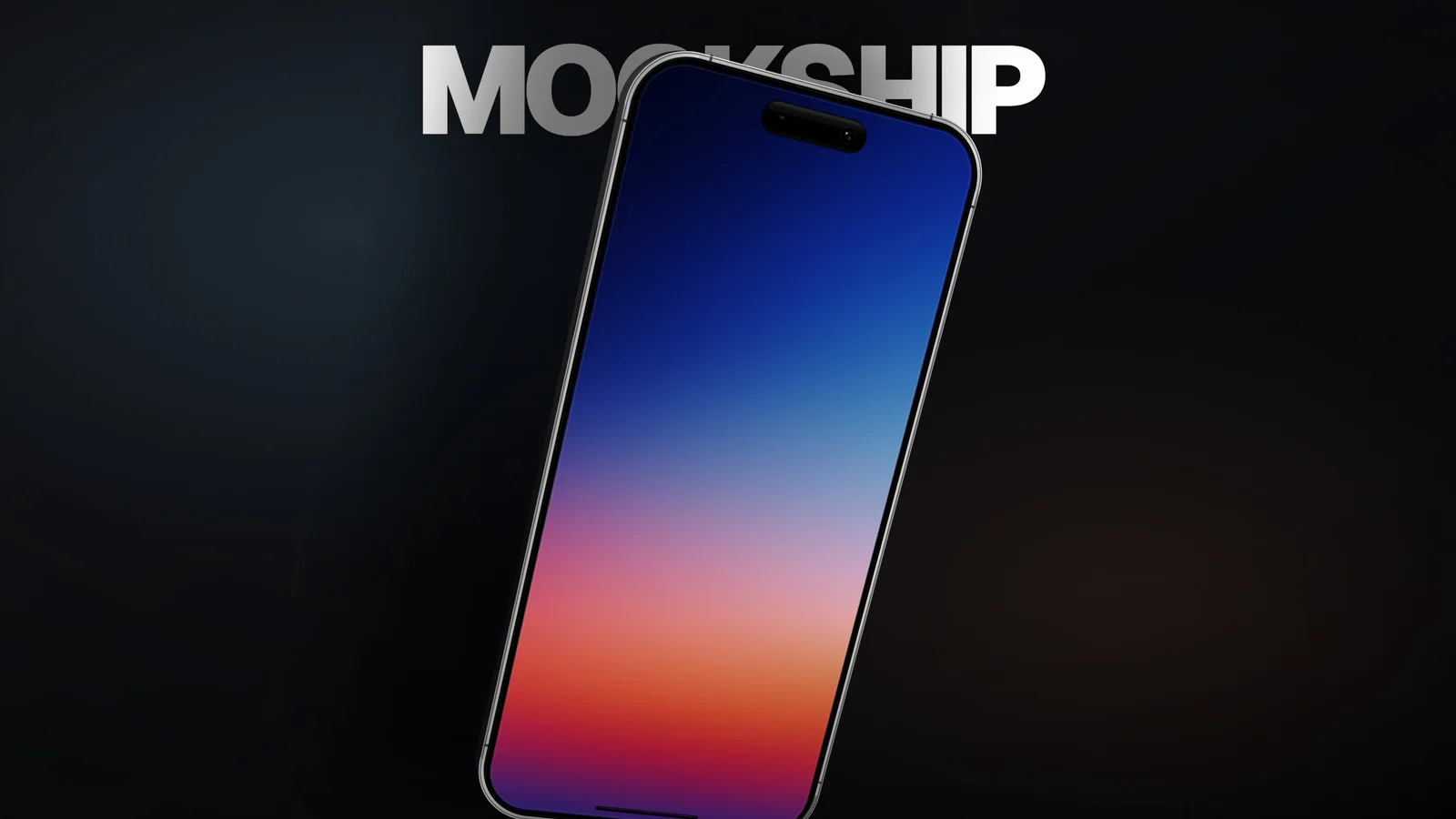
Turn iOS screenshots into considered product images and animated device scenes. Create in your browser.
The possibilities
A homepage, a portfolio, a product launch. Give your iOS interface a point of view with an iPhone mockup built around the work.
Use the left and right arrow keys to explore, or Home and End to jump to the first and last example.
ImageImage editor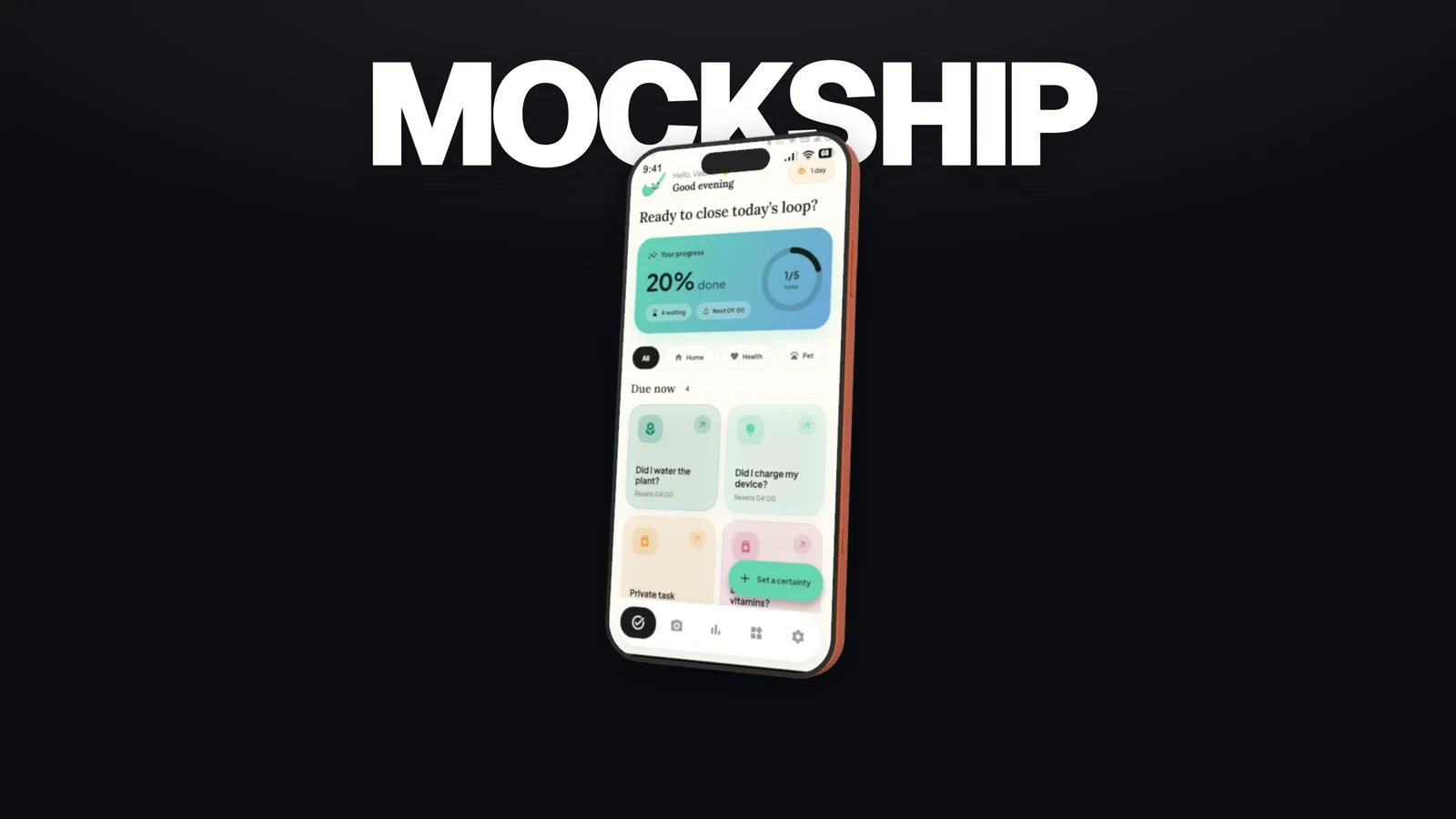 Video + imageMotion studio
 ImageImage editorVideo + imageMotion studio
Website heroes, example 1 of 4.
Choose your workspace
Motion creates videos and images. The Editor gives still images a dedicated workspace.
For videos and images. Direct animated 3D devices, work with screenshots or recordings, and export a film or a favorite frame.
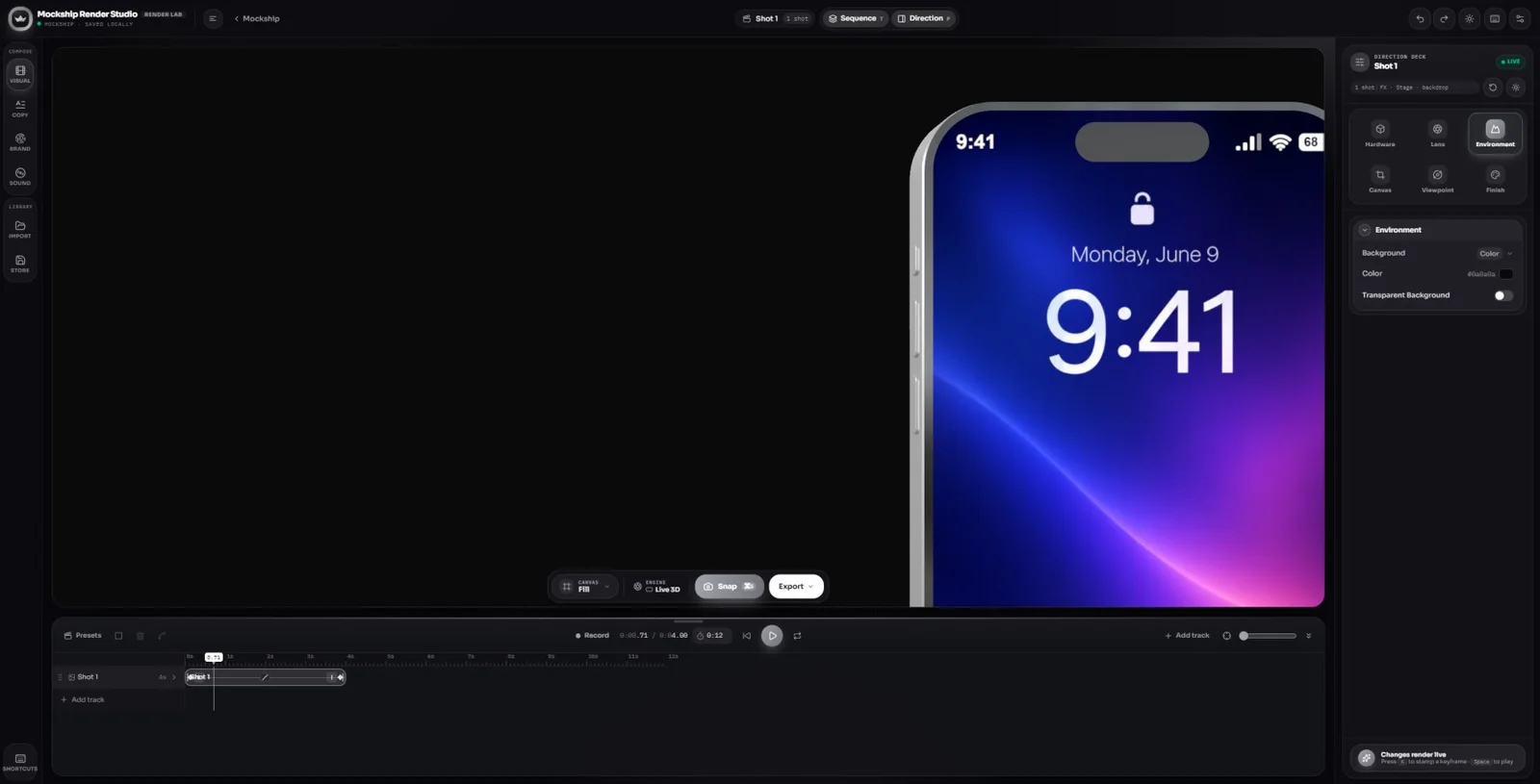
For images only. Compose a device scene with a considered angle, lighting, and background for your site or presentation.
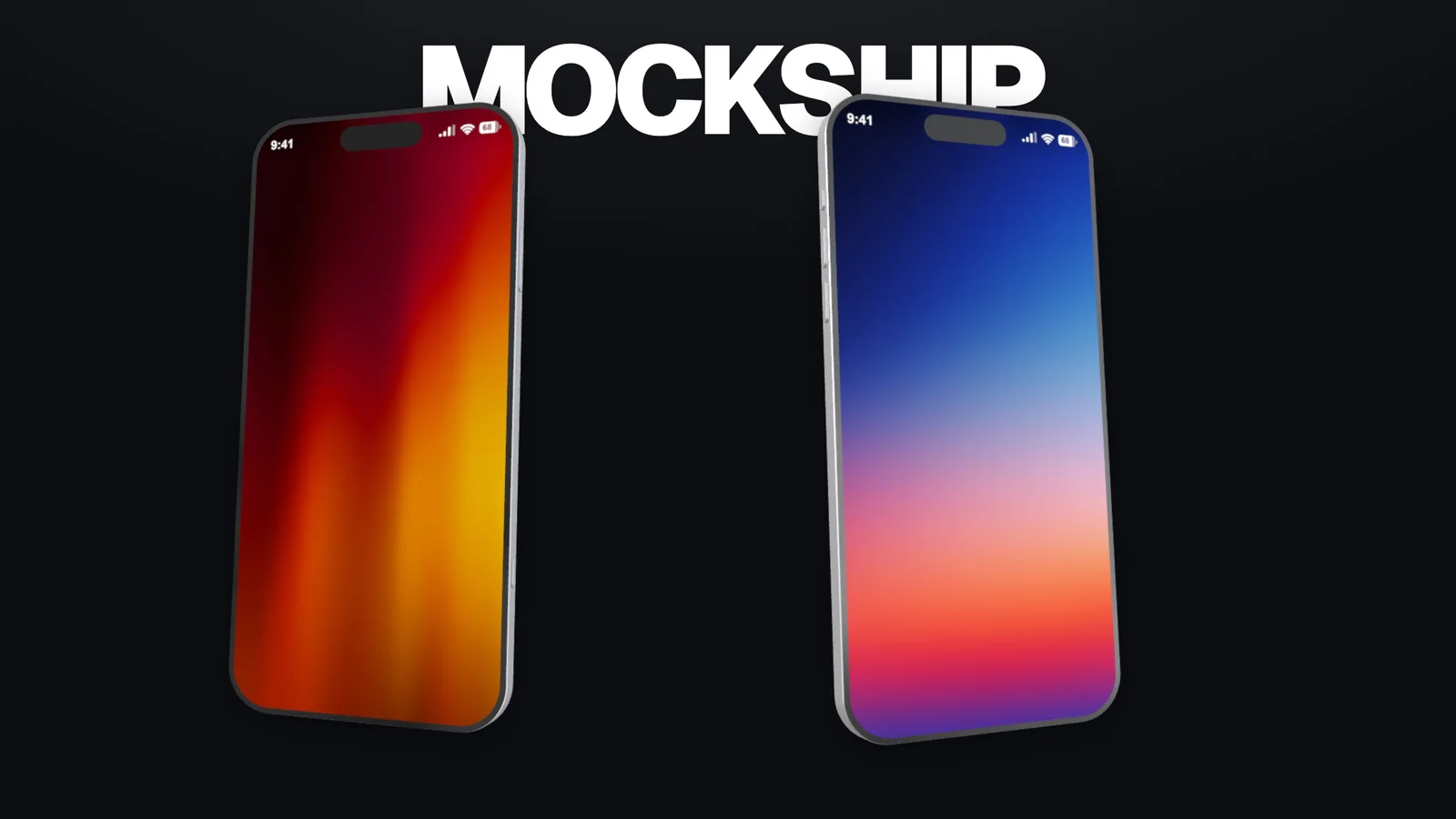
A quiet product portrait or a closer look at the interface. Explore a few ways to frame your next iPhone scene.
Use the arrow buttons, swipe a card, or use Left and Right on this gallery. Select the front image to expand it.
A little space around the product.
The quiet hero, image 1 of 6.
The creative process
How to create an iPhone mockup: choose your workspace, add your interface, and direct the composition.
A closer lookStart with a clear iOS screenshot. Choose an iPhone model in the workspace and place your screen inside its display.
Use Motion when your source is a recording or you want animation. Choose the Editor for a still image.
Set the camera angle, device finish, light, and background. Compose around the screen instead of making the frame compete with it.
Check that the important UI is readable before adding a dramatic perspective or a tighter crop.
Export an image for a homepage or presentation. In Motion, connect camera positions into an animated product scene and export the video.
Keep the source scene so you can create another crop or image when your campaign needs it.
The best iPhone mockup makes the interface easier to understand. These are the choices that help it get there.
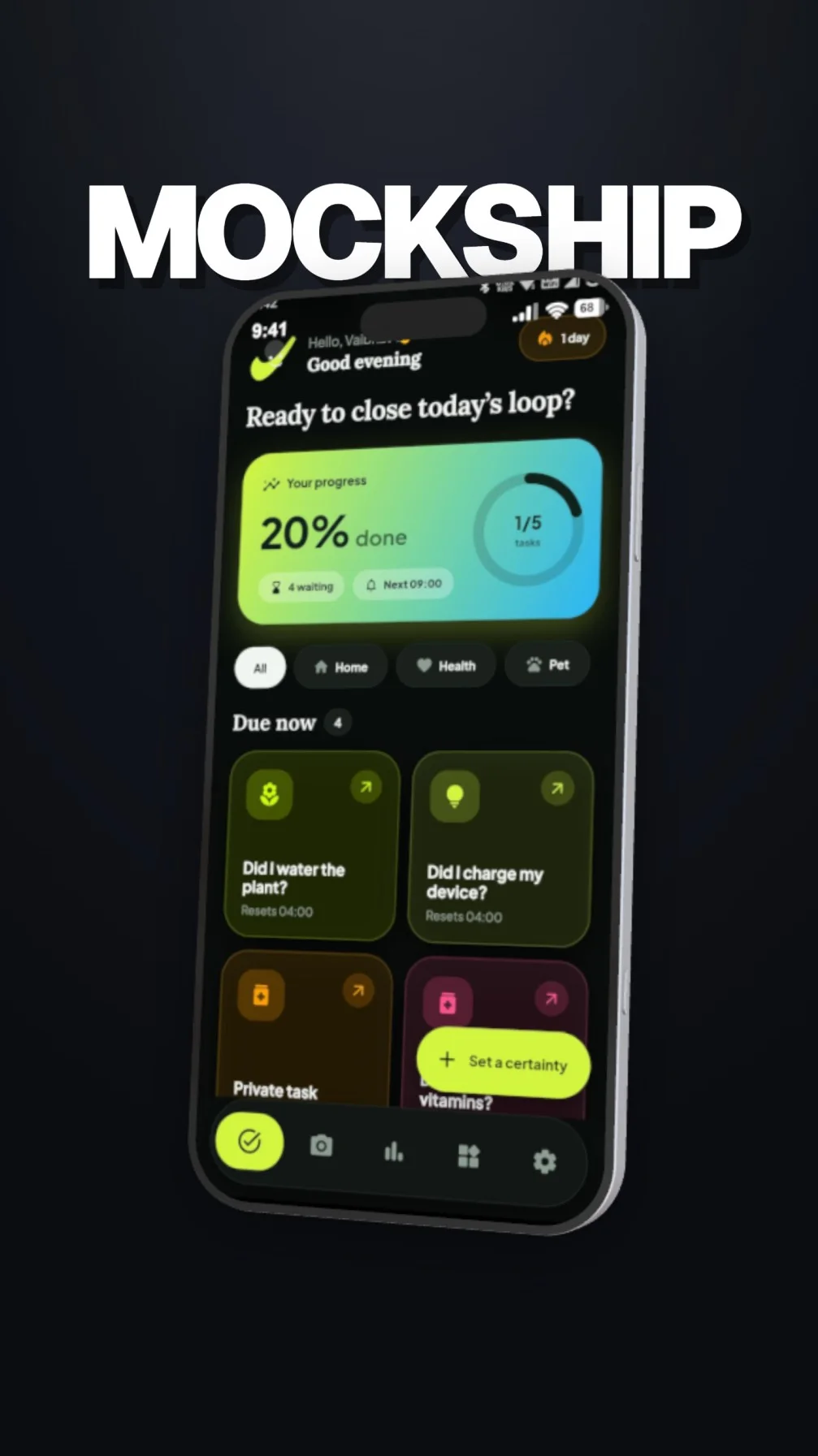
Pick an iPhone from the available device library. Match the source orientation and check how the interface sits around the screen corners and camera area.
Give a homepage headline or presentation caption somewhere to live. Use negative space, a focused crop, and a readable screen to create a useful marketing image.
Adjust the lighting, background, and finish to keep the device edge visible. A quieter reflection often gives the app more attention.
Use the Editor for images and transparent PNGs. Use Motion when the scene needs movement, a screen recording, music, or both video and still-frame exports.
From a homepage to a portfolio, the same interface can take on a very different presence. Open a frame and take a closer look.
Choose a frame. Take a closer look.06 perspectives
For your next release
Explore the creative tools with a free account. Choose a plan when your next launch needs more room to create and export.
Frequently asked questions
Practical answers for your next device composition.
Open MotionAn iPhone mockup generator places your screenshot inside a digital iPhone so you can present an app in context. Mockship adds 3D composition controls for the device, camera, light, and background. Use the result in a website, portfolio, launch campaign, or presentation.
Open Motion for animated iPhone mockups, screen recordings, video, and still-image exports. Open the Editor when you only need a still image, such as a website hero or a transparent PNG for a design composition.
Yes. Choose a device, upload your screenshot, and check its crop inside the screen. For animation or a recording, choose Motion. Start with a clear source image that matches the display orientation.
For a coordinated App Store screenshot set with headlines, multiple panels, and listing targets, use Showcase. The iPhone mockup tools focus on individual 3D device compositions; Showcase focuses on the complete screenshot campaign.
No. Start with the available devices and adjust the scene through the workspace controls. You can keep a simple front-facing composition or explore camera angles, lighting, and materials as your presentation develops.
Keep the story going